 Our first app on the Autodesk Marketplace
A complete box culvert in Revit, from a single dialog.
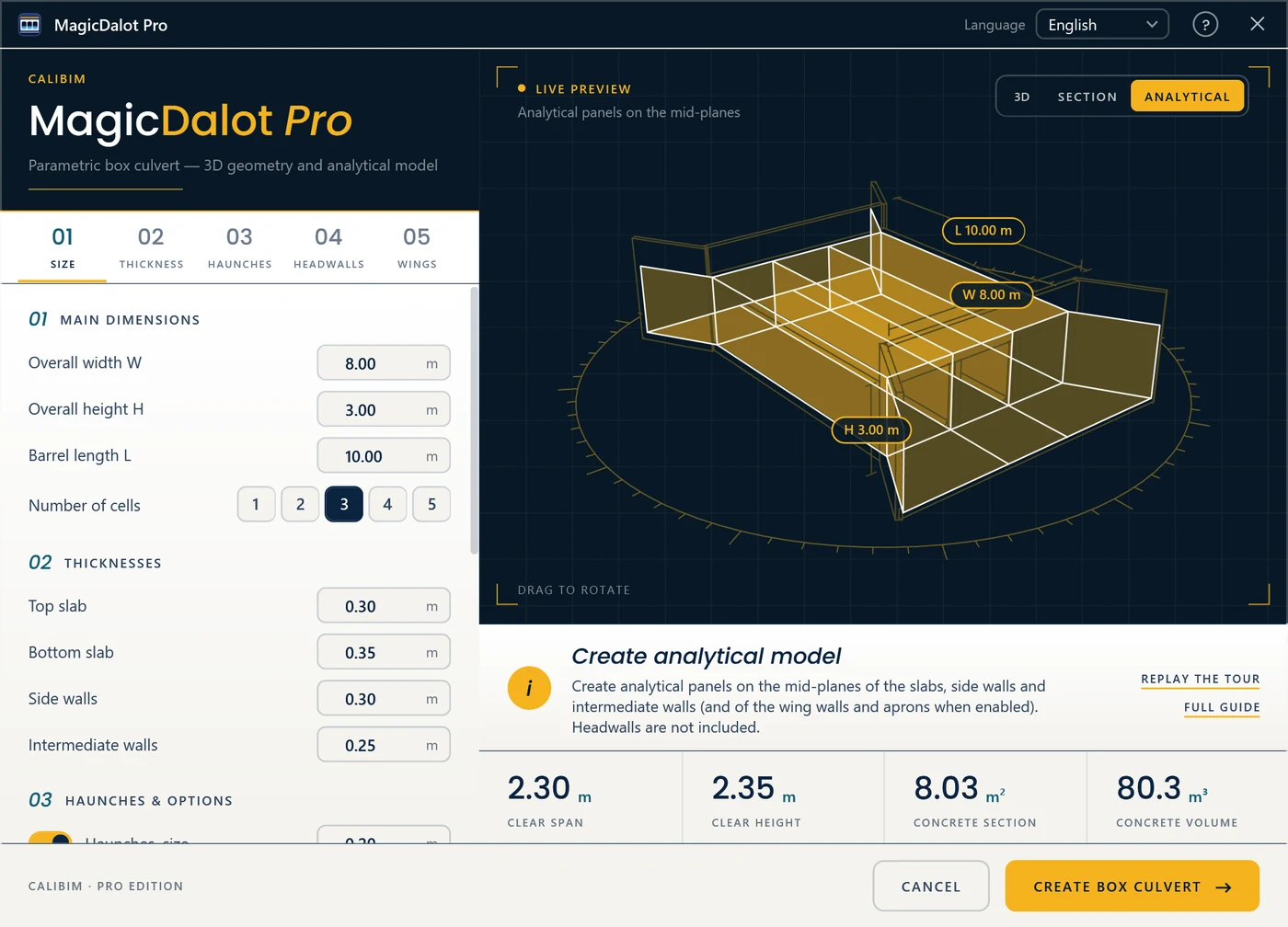
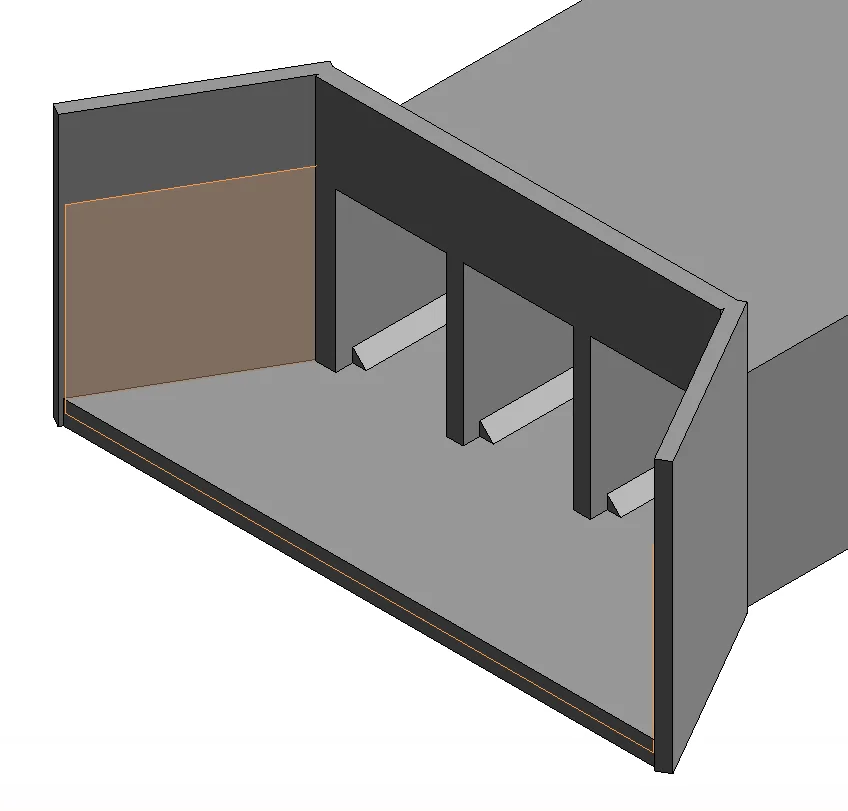
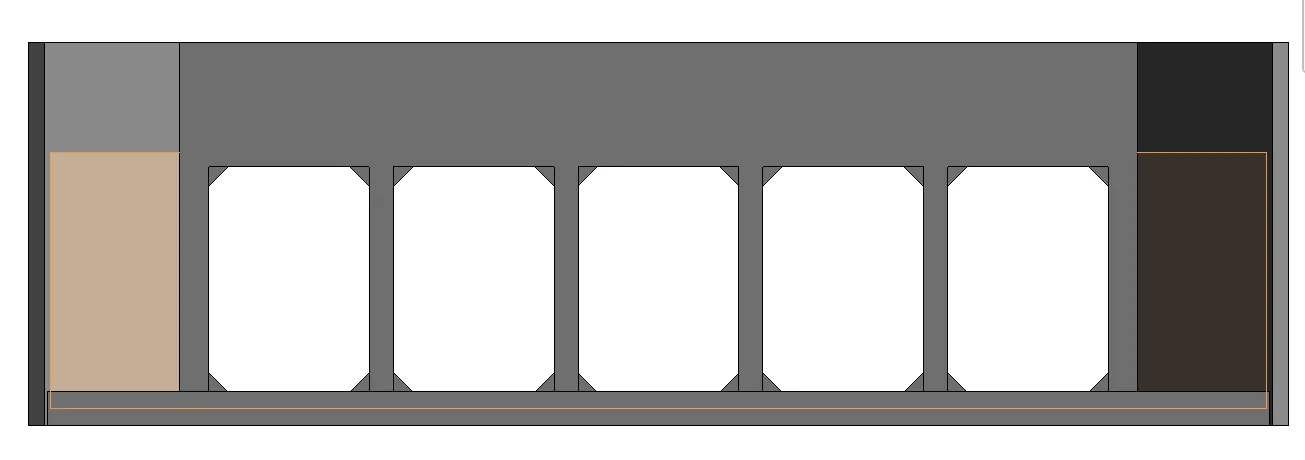
MagicDalot models the complete geometry of a reinforced-concrete box culvert inside Autodesk Revit: cells, haunches, headwalls, wing walls and aprons. With MagicDalot Pro, it also generates the analytical model, the starting point for structural analysis. The result is one coherent structure rather than a set of disconnected solids.
- Revit 2024 · 2025 · 2026 · 2027
- Windows 64-bit
- Version 1.0.2
- 1–5cells per culvert
- 4Revit versions, one install
- 3languages: English, French, Spanish
- 1 Ctrl+Zundoes the whole culvert
Everything a box culvert needs, in one transaction.
Start free with one or two cells. Move to MagicDalot Pro when your culverts grow, or when you need the analytical model.
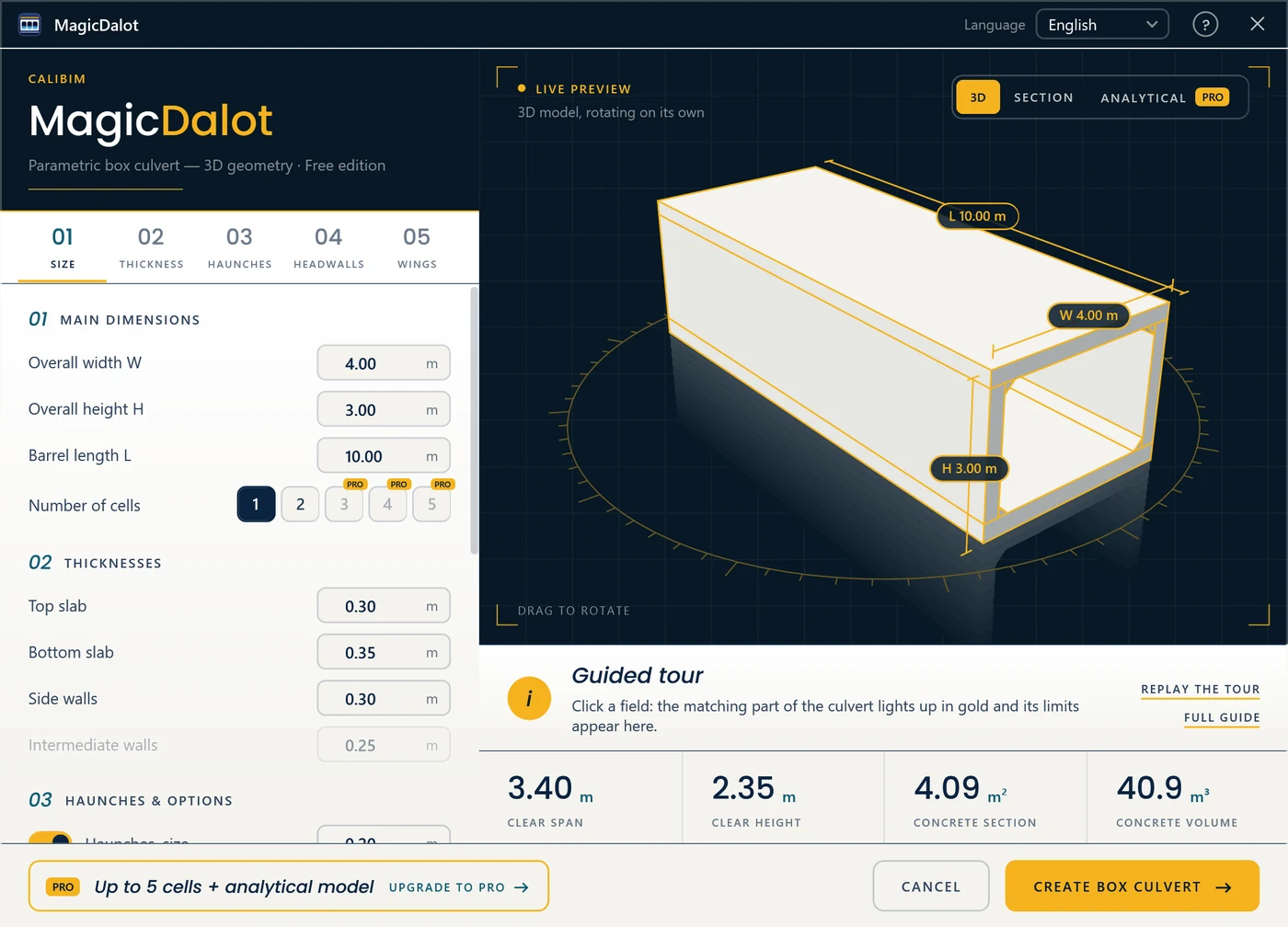
- 011 to 5 cellsOne or two in the free edition, up to five with MagicDalot Pro. The overall width is shared between the cells automatically.
- 02HaunchesHaunches at every internal corner of every cell.
- 03HeadwallsUpstream and downstream headwalls, with the cell openings cut automatically.
- 04Flared wing walls and apronsFour flared wing walls with adjustable length, splay angle and thickness. The bottom slab is extended to the end of the wing walls.
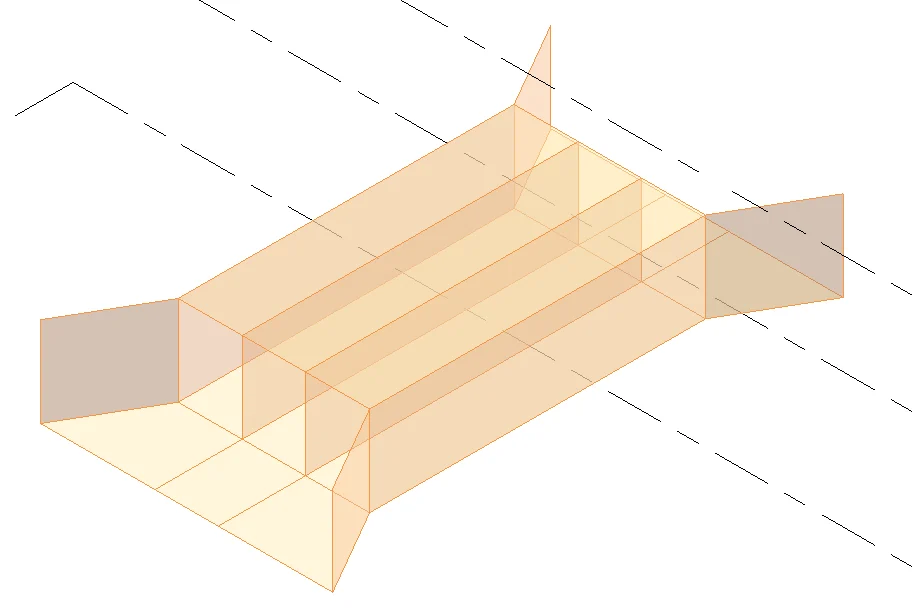
- 05Analytical model (Pro)The top slab, bottom slab, side walls, intermediate walls and, when enabled, the wing walls and aprons become analytical panels on their mid-planes, with thickness, structural role and, optionally, a concrete material. Panels meet exactly, with no gaps and no overlaps. Headwalls are not included.
- 06Live 3D previewThe culvert turns on its own; drag it to look around. Click a field and its part lights up in gold, with its limits shown below the preview. Three views: 3D, section and, in Pro, analytical. Four key figures sit underneath: clear span, clear height, concrete section and concrete volume.
- 07Checked input, one transactionEvery field is validated as you type: an invalid value is outlined in red with an explanation, and the Create button stays disabled until all values are consistent. The culvert is created in a single transaction, so one Ctrl+Z removes it completely.
- 08Three languages, built-in guideThe dialog is available in English, French and Spanish; change the language from the selector at the top right. A guided tour, which you can replay, shows each part of the culvert. A complete illustrated guide in all three languages is installed with the app and opens with the F1 key or the ? button.
MagicDalot & MagicDalot Pro.
| Feature | MagicDalot · Free | MagicDalot ProUSD 49.99 · one-time |
|---|---|---|
| One- or two-cell culverts | ✓ | ✓ |
| Three- to five-cell culverts | — | ✓ |
| Haunches, headwalls, wing walls and aprons | ✓ | ✓ |
| Live 3D preview, guide and checked input | ✓ | ✓ |
| English, French and Spanish interface | ✓ | ✓ |
| Analytical model, ready to receive supports and loads | — | ✓ |
MagicDalot Pro is coming to the Autodesk Marketplace: a one-time purchase of USD 49.99, activated with your Autodesk account. Write to us and we will tell you as soon as it is available.
How it works
Open
In Revit, go to the Add-Ins tab and click Box Culvert in the MagicDalot panel.
Dimension
Enter the sizes in metres. The 3D preview follows as you type, and any invalid value is outlined in red with an explanation.
Create
Click Create. The geometry, and with MagicDalot Pro the analytical model, are generated in one transaction.
Analyse
With MagicDalot Pro, show the analytical model, add supports and loads, and continue with your structural analysis workflow.
MagicDalot in pictures.
MagicDalot: your questions.
Which Revit versions does MagicDalot support?
Revit 2024, 2025, 2026 and 2027, on Windows 64-bit. One installation covers all four versions, and the right build loads automatically. Install MagicDalot from the Autodesk Marketplace with Revit closed.
Does the analytical model include the headwalls?
No. MagicDalot Pro places analytical panels on the mid-planes of the top slab, bottom slab, side walls and intermediate walls, and of the wing walls and aprons when they are enabled. Headwalls are not included. The model is ready to receive your supports and loads.
Where can I find help?
In the MagicDalot window, press F1 or the ? button to open the illustrated guide, in English, French and Spanish. For any question, write to calibimsupport@gmail.com with your Revit version, your MagicDalot version, what you did and the exact message shown. Please do not send confidential project files.
Do my models leave my computer?
No. MagicDalot collects no personal data and runs inside Autodesk Revit, on your own computer. The free edition makes no network connections; MagicDalot Pro only asks Autodesk, about once a week, whether your Autodesk account has bought it.
Support : calibimsupport@gmail.com · MagicDalot privacy policy
A project, a tool you need, a technical question?
Tell us what you need: we will get back to you to discuss it.